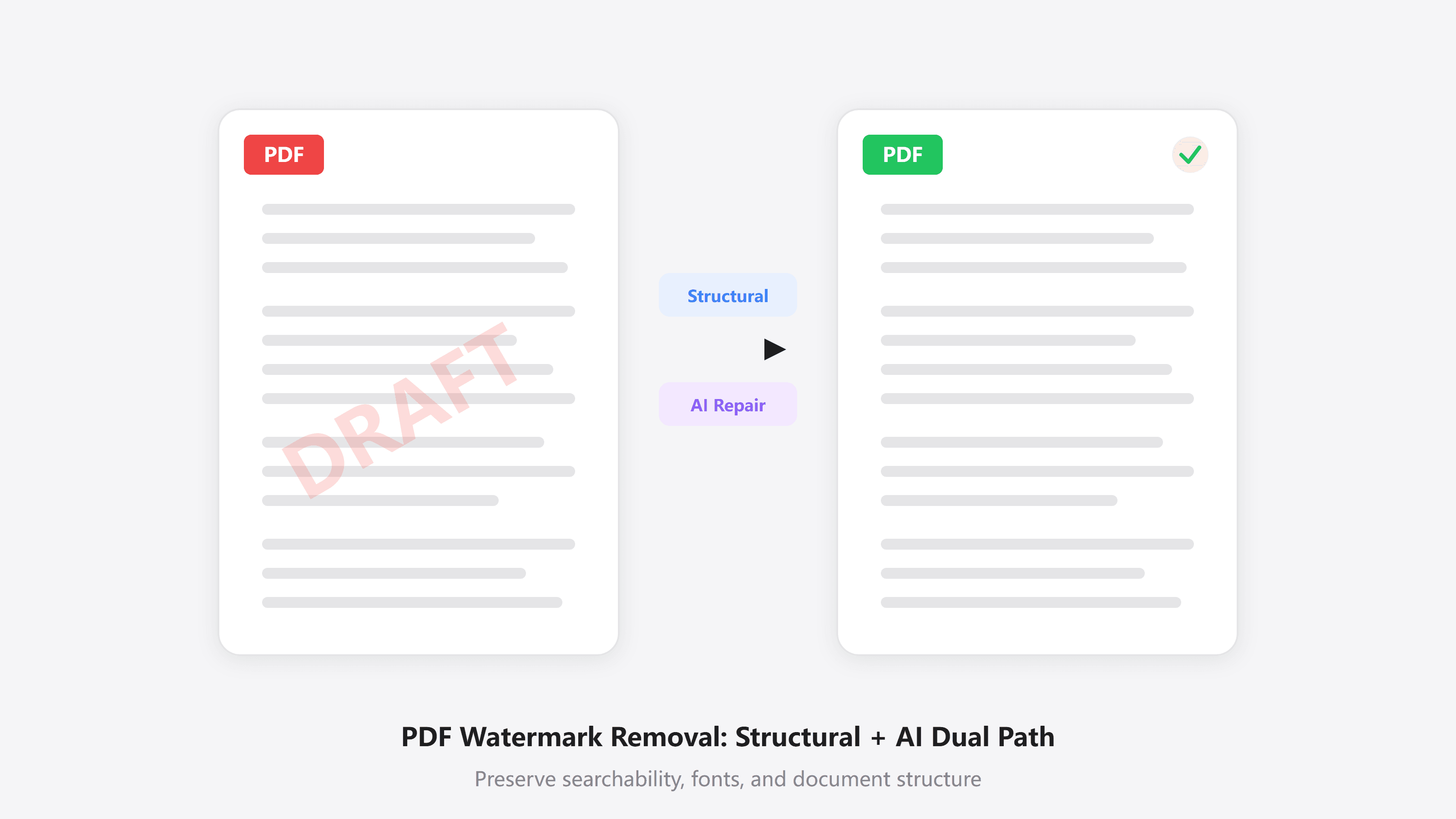
You receive a PDF full of "DRAFT" or "CONFIDENTIAL" marks and need to print it, archive it, or feed it into an LLM-based RAG workflow. Most people assume removing the watermark should be simple. In practice, that is where the problems start. After a bad cleanup, the text may disappear with the watermark, or the entire file may come back as a giant image bundle with no search, no copy, and no usable text layer.
The issue is not just the tool. PDF watermarks can be stored in several very different ways, and each one needs a different technical approach. If you understand the storage model first, it becomes much easier to pick the right solution.
The four common ways watermarks are stored in PDFs
A PDF is not just "one big image". It is a structured object tree. Where the watermark is attached in that tree determines whether it can be removed cleanly.
1. Independent object-layer watermark
The watermark exists as its own Form XObject or Image XObject in the page resources, separate from the main document content. This is the easiest case. You can remove that object cleanly and leave the text and layout untouched.
2. Watermark flattened into the content stream
Some PDF generators flatten the watermark and the page content into the same content stream. The watermark is no longer a separate object. Its drawing instructions are mixed with the rest of the page instructions. Removing it requires real stream parsing and selective rewriting.
3. Transparency-blended watermark
In some PDFs, transparency groups physically blend the watermark with the content underneath. At that point, the pixels are already combined. This is similar to merging layers in an image editor. Simple object deletion is no longer enough.
4. Watermark on scanned pages
For scanned PDFs, each page is effectively just an image. Text, background, and watermark are all burned into the same bitmap. There is no meaningful object-layer watermark to detach.
A quick way to classify your PDF
Open the file in Adobe Acrobat and try selecting the watermark text. If it can be selected and deleted independently, it is likely case 1. If it gets selected together with nearby page content, it is more likely case 2 or 3. If you cannot meaningfully select any text at all, it is probably a scanned PDF in case 4.
Path 1: structured deletion
For watermark types 1 and many type 2 cases, the best solution is structured deletion. Instead of painting over the page, you modify the PDF object model or drawing instructions directly and remove only the watermark-related elements.
Why structured deletion matters
Many users only care that the watermark no longer looks visible. But if your document still needs to support:
- Full-text search
- Copy and paste
- Machine translation
- RAG ingestion and retrieval
then preserving the original vector text, embedded fonts, links, and internal structure is critical. Once the document gets rasterized into images, all of those capabilities are degraded or lost, and later workflows become much more expensive.
How structured deletion works
- Parse the object graph to inspect page resources and cross-reference tables
- Fingerprint watermark candidates based on repeated coordinates, scale, color, or object reuse across pages
- Rewrite content streams by removing only the target drawing operations, while preserving text operators such as
TjandTJ - Cut object references cleanly so the watermark is no longer reachable from the page resources
If done correctly, the resulting PDF keeps searchable text, embedded fonts, hyperlinks, and navigation structure intact.
Path 2: AI inpainting and deep repair
For transparency-blended watermarks and scanned PDFs, the watermark has already merged with the page image. Structured deletion cannot recover the hidden content there. In those cases, you need image repair.
How AI repair differs from simple erasing
Basic erasing tools often blur, clone, or cover the watermark region. That may make the mark less visible, but usually leaves artifacts behind. Deep-learning-based inpainting tries to reconstruct the hidden content from context, including text strokes, texture, and color transitions.
What that means in practice
| Simple erase | AI repair | |
|---|---|---|
| Text stroke recovery | Weak | Stronger |
| Large-area watermarks | Obvious artifacts | Much more capable |
| Background restoration | Flat fill | Can rebuild texture and gradients |
| Best use case | Small marks on simple backgrounds | Complex pages and scanned documents |
The limits of AI repair
AI repair still has hard boundaries:
- Dark watermarks over light text can destroy too much original signal
- Processing is slower because pages must be rendered and repaired
- Output becomes image-based after page reconstruction, so the original vector text is not preserved
When AI repair is the right choice
If the PDF is scanned or the watermark has been flattened or blended into the page image, AI repair is usually the more realistic path. If the watermark is a separate vector or object-layer element, structured deletion is still better.
Common workaround traps
Before using a dedicated tool, many people try one of these shortcuts. Each has obvious downsides.
Convert to Word, edit, then convert back
This sounds reasonable, but it often wrecks complex layouts. Multi-column text, nested tables, and formulas can shift badly. Watermarks may also be broken into many fragments, making cleanup harder instead of easier.
Rasterize every page, erase, then rebuild the PDF
Some online tools render each PDF page to an image, clean the watermark visually, and then package the images back into a new PDF. That may look okay at first glance, but file sizes often explode and text search or copy is gone.
Cover the watermark with white boxes or screenshots
This can hide the watermark visually, but it permanently destroys whatever content was beneath it. On close inspection, the repair is often obvious.
Which path to choose in real scenarios
Contracts and legal files
These are usually vector PDFs with repeated text watermarks such as "Draft" or "Confidential". Structured deletion is the right default because it preserves searchable clauses and document fidelity.
Scanned academic papers
Library stamps or scanned overlay marks are image-level problems. AI repair is the more realistic route. If you still need searchable text afterward, OCR may be required as a second step.
Internal enterprise archives
For historical documents with outdated marks, structured deletion is usually the most efficient path if the PDFs still contain editable vector content.
Using Pilio to remove PDF watermarks
Pilio's PDF Watermark Remover offers two modes that map directly to the two technical paths above:
- Editable PDF mode uses structured deletion. It is faster and preserves vector text, which makes it the preferred option for many text-based PDFs.
- AI deep removal mode uses page-level repair for scanned or flattened documents.
After upload, the system tries to detect the document type automatically. If it looks like a scanned PDF, it recommends switching to AI mode. You can compare the before-and-after result before downloading.
Current AI mode page limit
The AI deep removal mode currently supports up to 25 pages per run. If your document is larger, split it into smaller files first.
If your problem is an image watermark rather than a PDF watermark, use Image Watermark Remover or Gemini Watermark Remover instead. We compare those workflows in our image watermark guide.
PDF Watermark Remover
Structured deletion plus AI repair while keeping the document usable.
Image Watermark Remover
AI-assisted removal for common image watermarks.
Gemini Watermark Remover
Hosted cleanup optimized for Gemini-generated images and videos.
Privacy and security
When you are processing contracts, legal files, or unpublished internal documents, security is not optional. Pilio uses encrypted transfer and automatically clears files after processing instead of retaining them.