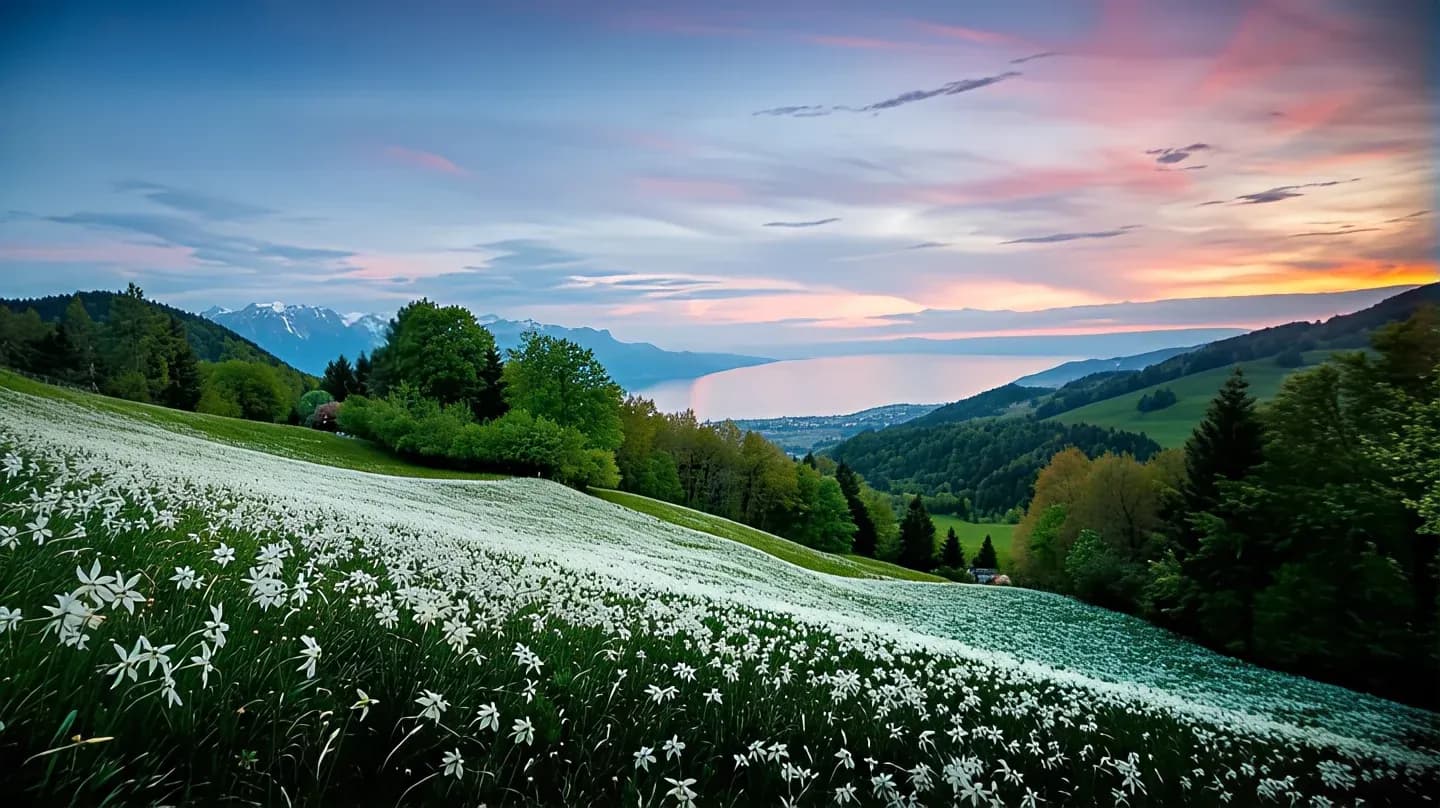

Landscape photo enhancement
Low-resolution landscape photos gain smoother sky gradients, sharper foliage, and clearer building outlines after AI upscaling. The overall detail feels rich and natural
AI rebuilds edges, textures, and fine details that simple resizing loses. Compare before and after results across common use cases
Low-resolution landscape photos gain smoother sky gradients, sharper foliage, and clearer building outlines after AI upscaling. The overall detail feels rich and natural
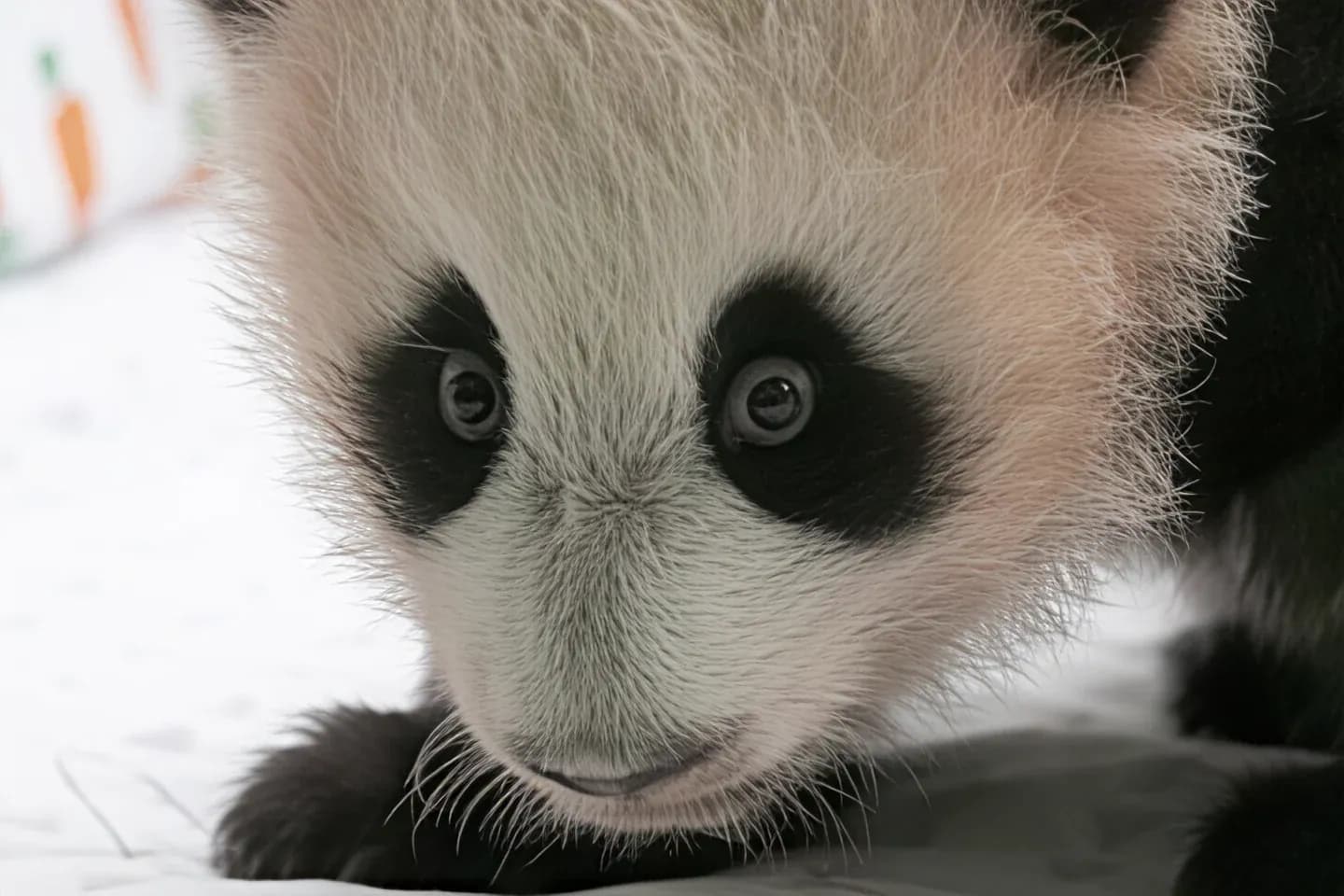

AI can rebuild fur texture and eye detail when upscaling pet or wildlife photos. Fine fur detail can become more distinguishable, making the result better suited for pet portraits and social sharing
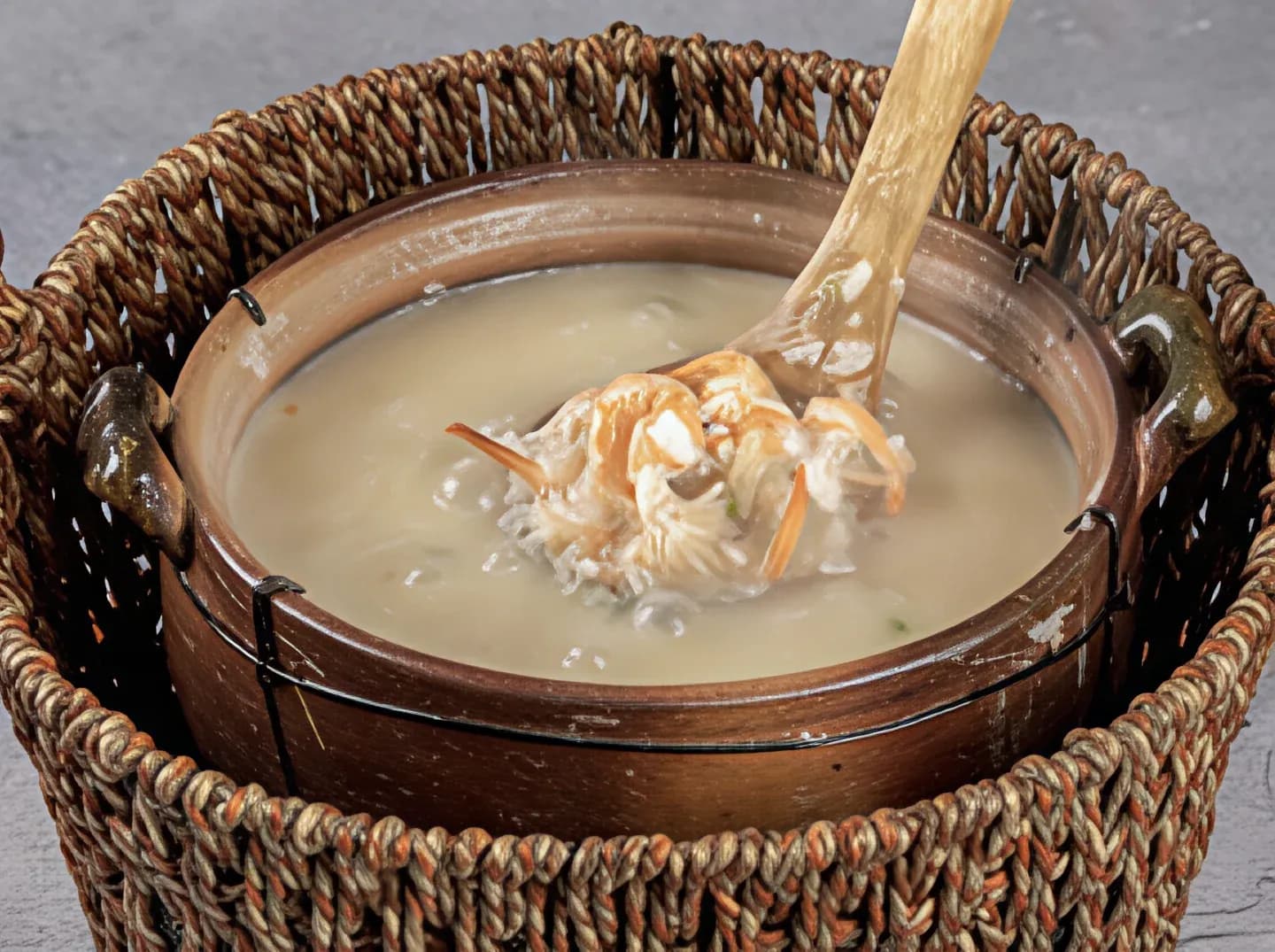

Small food images reveal rich surface textures, sauce glossiness, and ingredient layers after AI upscaling — ideal for menu design and food blogs
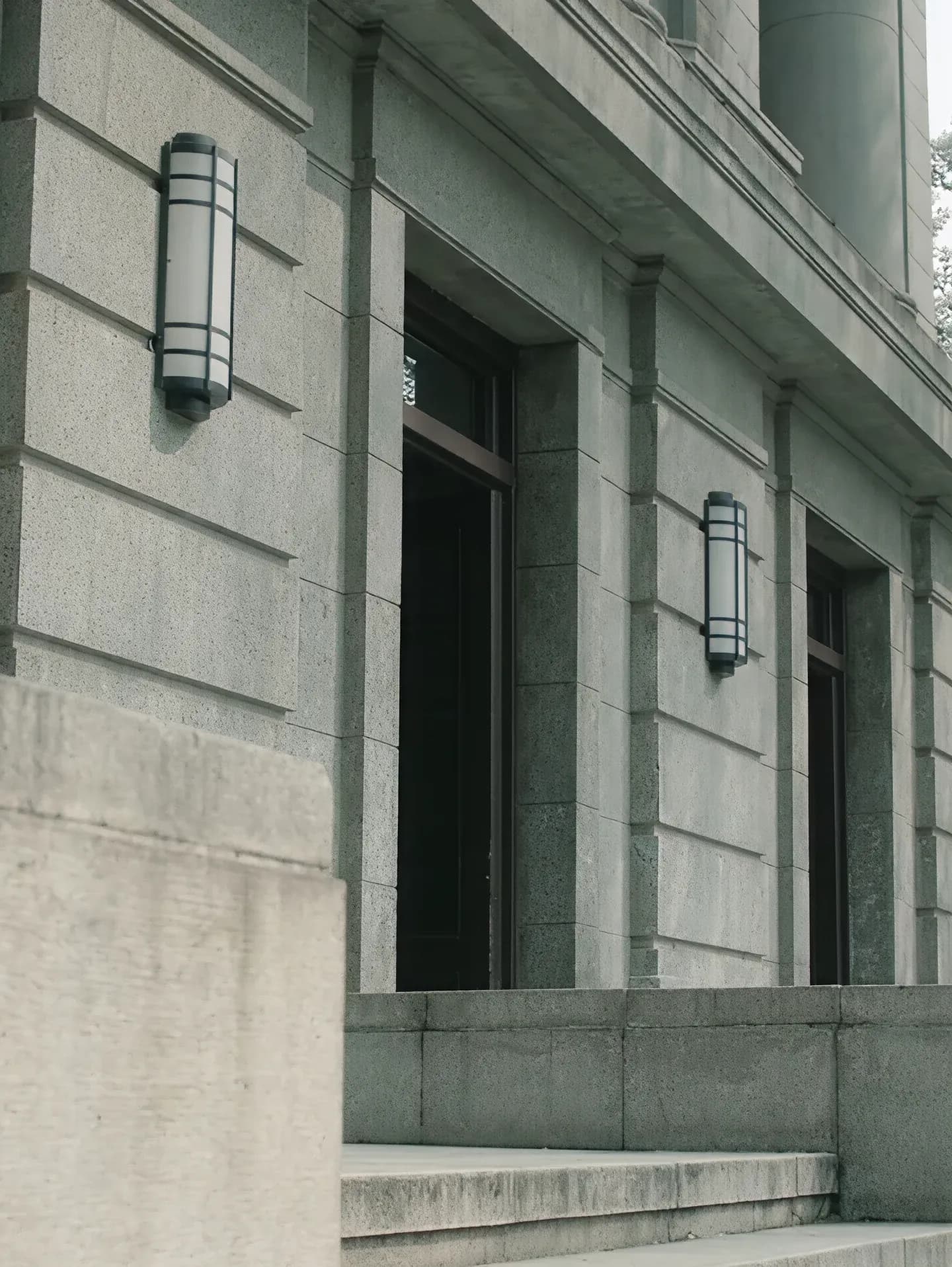

Brick joints, window frames, and ornamental details re-emerge after upscaling. AI restores sharpness in architectural textures and lines — great for real estate and architectural photography
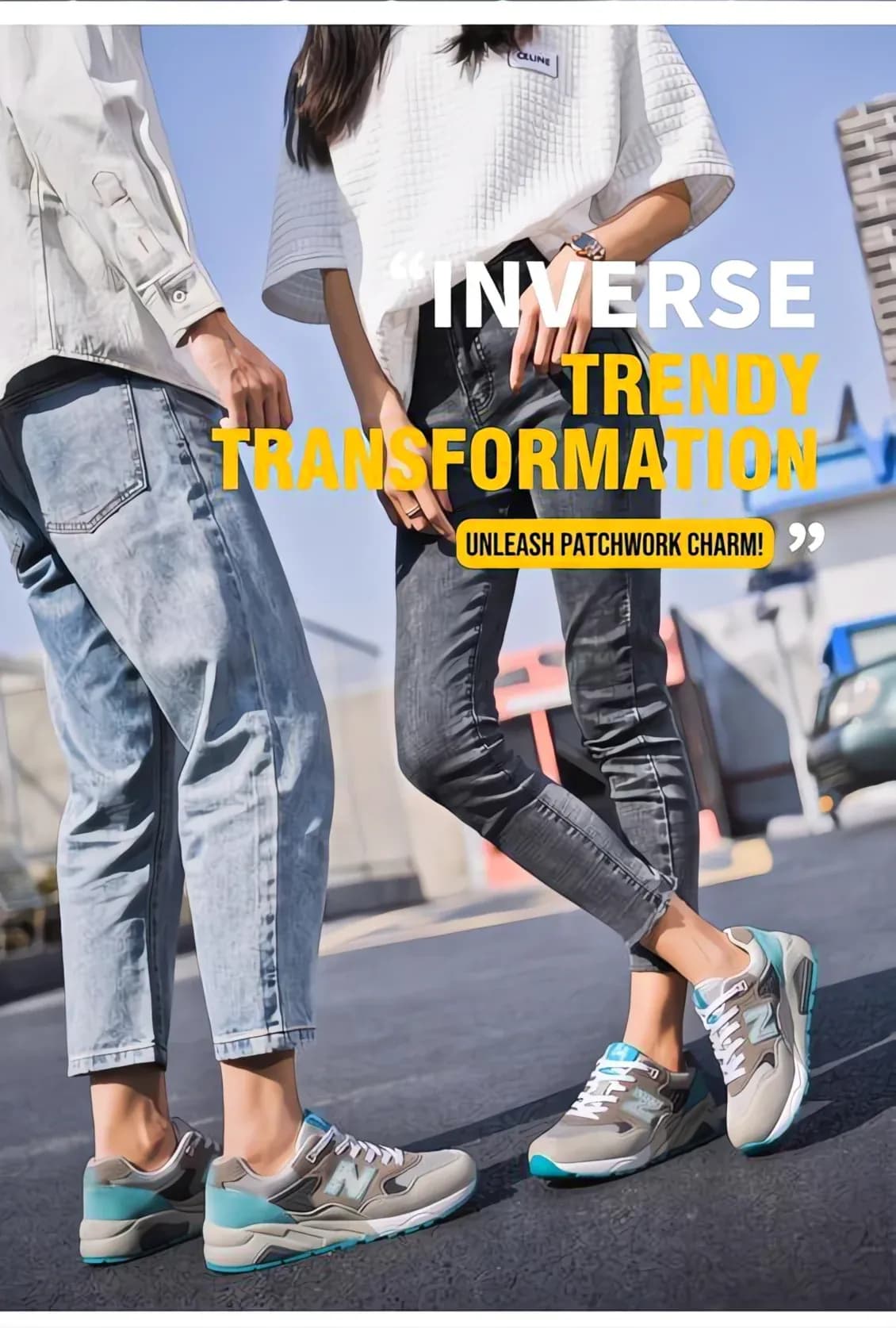
Turn small product thumbnails into high-resolution catalog images. AI preserves material textures, stitching details, and color accuracy for e-commerce listings on Amazon, Shopify, and eBay
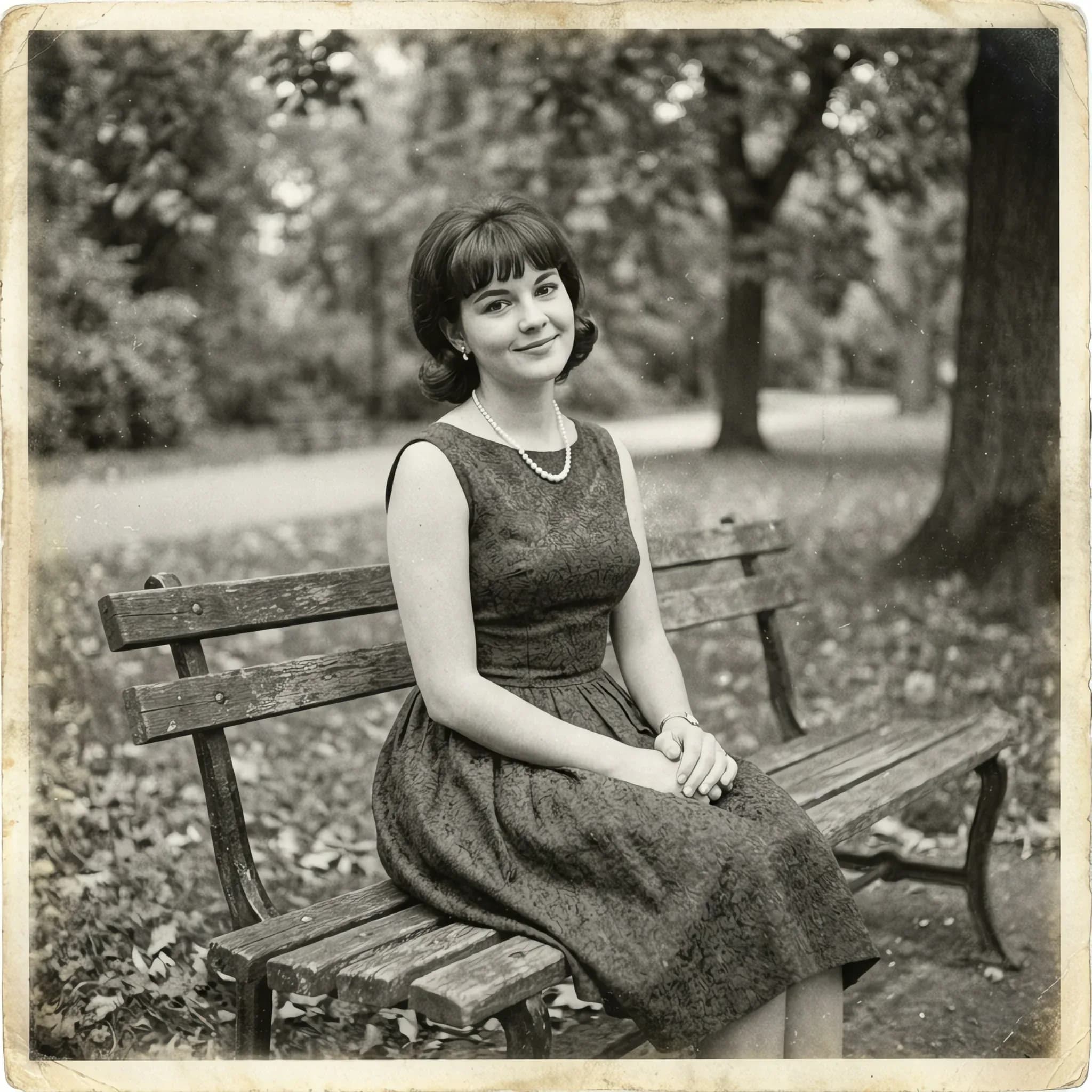

Breathe new life into archived family photos, vintage prints, and low-quality digital copies. AI recovers lost detail and reduces noise while keeping the original character of the image


Click upload or drag a PNG, JPG, JPEG, or WebP image into the workspace. Supports photos, illustrations, screenshots, and scanned documents

Auto balances clarity, speed, and file size. HD uses a more aggressive reconstruction strategy for tiny images and old photos. The AI handles denoising and texture rebuilding automatically

Wait a few seconds while AI rebuilds detail and enhances resolution. Preview the result, then download the sharper, higher-resolution image
Real feedback from people who use Pilio for image upscaling
I run an online shop and need clear product images from supplier thumbnails. This tool turns tiny catalog images into usable listing photos in seconds
 Elena
ElenaI upscale small landscape shots for desktop wallpapers. Sky gradients and foliage stay natural — none of that fake AI oil-painting feel
 Mika
MikaAs a designer, I often need to enlarge client-provided images. The AI does a much better job than Photoshop's basic resize. Edges stay clean and textures look natural
 Carlos
I used HD on scanned family photos to restore background texture, fabric detail, and clean edges. The result feels far more natural than other tools I've tried
 James
JamesPerfect for social media. I upscale downloaded images that lost quality after compression and they look sharp again. No Photoshop needed, just upload and download
 Priya
PriyaI upscale anime art and illustrations frequently. The detail recovery is noticeably better than other free tools I've tried. Colors and lines stay crisp
 Hana
Hana| Feature | Topaz Photo | Let's Enhance | Pilio |
|---|---|---|---|
| Upscale quality | Professional desktop AI upscaler | AI upscale, best for photos | Next-gen model, natural with no oil-painting look |
| Upscale technology | Multiple AI models, requires local GPU | Traditional SR, limited detail recovery | AIGC generative SR, rebuilds real textures |
| Preset design | Many models & parameters, steep learning curve | Multiple ratios, more options to configure | Two presets, Auto / HD — works out of the box |
| Content coverage | Separate models for portraits, landscapes, anime, etc. | Optimised mainly for general photos | Landscapes, animals, food, architecture, products, old photos |
| Free tier | No free tier, ~$199 one-time purchase | Trial then paid | Free credits on signup |
| Access | Desktop software, download required | Online, no install needed | Online in browser, no install needed |
Still have questions? Email support@pilio.ai