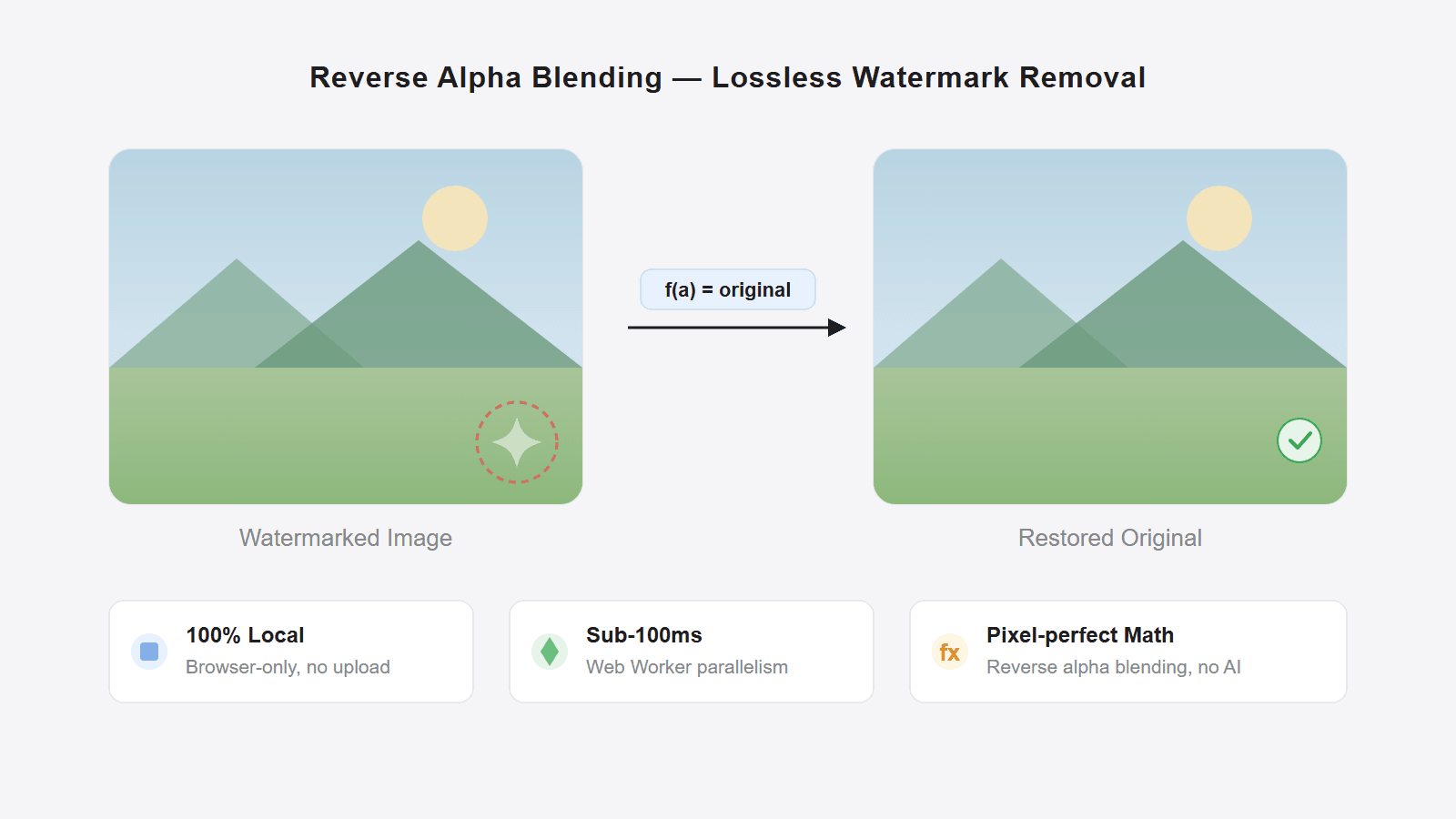
After you generate an image with Google Gemini, a semi-transparent star watermark appears in the bottom-right corner. If you are just looking at it yourself, that may not matter. But if you want to use it in slides, design drafts, or social posts, the watermark quickly becomes distracting.
Most people instinctively look for a retouching tool to "erase" it. Gemini's watermark is different, though. It is not random graffiti painted on top of the image. It is a fixed pattern in a fixed position, blended in with a mathematical formula as a semi-transparent overlay. If the way it was added is deterministic, the way to remove it can also be deterministic. You do not need AI to guess. You can calculate it back with the reverse formula.
This article breaks down how that works, and helps you judge when the method works well and when it does not.
If you are not looking for the theory and just want the fastest practical steps, read how to remove Gemini watermark from images first.
The local browser workflow discussed here refers to geminiwatermarkremover.io and the open-source reverse-blending implementation. Pilio's Gemini Watermark Remover now uses a hosted server-side pipeline for Gemini videos, complex images, and fallback cleanup.
How Gemini's visible watermark is actually added
Gemini's visible watermark uses standard alpha compositing. This is not exotic. It is the basic transparency formula used throughout computer graphics:
watermarked = alpha x logo + (1 - alpha) x original
Where:
watermarkedis the final pixel value you see in the exported imageoriginalis the original pixel hidden underneath the watermarklogois the watermark color value (Gemini's star watermark is white, so 255)alphais the watermark opacity at that pixel, between 0 and 1
In plain language, the final pixel color is the watermark color multiplied by opacity, plus the original image color multiplied by the remaining transparency. The higher the opacity, the more visible the watermark becomes, and the more original information is suppressed.
This process has two important characteristics:
- The watermark shape is fixed. The star looks the same on every Gemini image.
- The opacity map is fixed. For the same watermark size, the alpha value at each pixel position does not change.
That means if someone reverse-engineers the alpha map, they can build an exact reverse formula.
Reverse alpha blending: solving the original pixels mathematically
Once you know the forward formula, you can solve the equation in reverse:
original = (watermarked - alpha x logo) / (1 - alpha)
This is the core idea described by Allen Kuo. By capturing the watermark on solid-color backgrounds, he reconstructed the full alpha map and applied the reverse formula to every covered pixel.
This is fundamentally different from AI inpainting:
| Reverse alpha blending | AI inpainting | |
|---|---|---|
| Principle | Precisely solves the original pixels from a formula | The model guesses what the hidden region should look like |
| Accuracy | Pixel-level restoration with very small error | Depends on model quality and can hallucinate |
| Speed | Milliseconds | Seconds to minutes |
| Best use case | Fixed watermarks with a known alpha map | General obstruction removal and image repair |
| Typical failure mode | Wrong alpha map causes color artifacts | Unnatural textures or invented details |
The short version
Reverse alpha blending restores. AI inpainting invents a plausible replacement.
What determines whether restoration works well
The reverse formula is exact under ideal conditions, but real-world results still depend on the input image.
Best-case inputs:
- The original PNG exported directly from Gemini
- No screenshotting, resizing, or recompression
- The area under the watermark is not pure white or extremely close to white
Cases where quality may degrade:
- The image was recompressed by social platforms such as WeChat or Weibo
- The image was saved through screenshot tools that introduce scaling or color changes
- The watermark sits on an almost white background, where high alpha values destroy more information
Cases where it does not apply at all:
- A watermark from a different generator or product
- Google's SynthID invisible watermark, which lives in the frequency domain instead of a visible overlay
- Images that have already been heavily edited in the watermark area
SynthID is not the visible watermark
Gemini images may contain both the visible star watermark and the invisible SynthID watermark. Reverse alpha blending only handles the visible part.
The two common Gemini watermark sizes
According to real-world tests in this open-source repository, Gemini currently uses two visible watermark sizes:
- 48 x 48 pixels for smaller generated images
- 96 x 96 pixels for larger generated images
The alpha pattern is the same four-point star in both cases, but the scale and margins differ. Detecting the correct size matters. If you use the wrong alpha map, the reverse calculation produces obvious color shifts.
The local browser implementation automatically detects the watermark size and selects the matching alpha map for you.
If you want to implement it yourself
If you are a developer and want to understand the mechanics or build your own version, the core workflow is small:
Step 1: Load the alpha map
The alpha map records the opacity value for every watermark pixel. You can calibrate it by capturing the watermark on a black background. If the displayed pixel value is v on pure black, then alpha = v / 255.
Step 2: Locate the watermark area
Gemini places the watermark in the bottom-right corner with a fixed margin. Once you know the watermark size and margin, the covered area is easy to compute.
Step 3: Run reverse calculation pixel by pixel
For each pixel in the watermark area:
// Compute each RGB channel separately
for (let ch = 0; ch < 3; ch++) {
  const watermarked = imageData[pixelIndex + ch];
  const alpha = alphaMap[mapIndex];
  const logo = 255; // White watermark

  const original = (watermarked - alpha * logo) / (1 - alpha);

  imageData[pixelIndex + ch] = Math.round(
    Math.max(0, Math.min(255, original))
  );
}
You can see a full implementation in our open-source repository, including the alpha map files, dual-size auto detection, Web Worker parallelism, and a Tampermonkey userscript.
Why the reverse formula can run entirely in the browser
Reverse alpha blending is computationally cheap. It is just arithmetic on a few thousand pixels. No GPU is required. No model inference is required. A normal JavaScript thread can finish it in tens of milliseconds.
With Web Workers, even batch processing dozens of images still completes in seconds. That is why the reverse-blending implementation can be offered as a pure frontend tool without uploading files to a server. In that local workflow, the calculation happens in your own browser, and the image never leaves your device.
That is a meaningful privacy advantage when you are handling unpublished design drafts, commercial assets, or internal visuals.
Practical usage advice
Here are the main recommendations by scenario:
Original Gemini PNGs
This is the ideal input for the local browser workflow. Drop them straight into geminiwatermarkremover.io and you usually get a clean result with no visible residue.
Images saved from Gemini chat history
If you used "Save image as" directly in the Gemini interface, the result is usually still good. If you used a screenshot tool, scaling and color conversion may reduce quality.
Images forwarded through messaging apps
Once an image goes through WeChat, Telegram, or similar platforms, the watermark area may already be recompressed. The reverse formula can still improve the appearance, but perfect restoration is no longer guaranteed. For messy images or Gemini videos, Pilio's hosted Gemini remover is usually a better first test.
Batch processing
Batch upload is supported, but it is still smart to test one or two images first before processing a large set.
If you are dealing with a non-Gemini watermark, read the full guide to image watermark removal for a broader comparison of traditional and AI-based approaches.
Attribution and usage boundaries
The reverse alpha blending method originates from Allen Kuo's research article and his Gemini Watermark Tool under the MIT license. Our open-source repository is a JavaScript implementation and productized version built on that work.
From a usage perspective, the tool is intended for personal and educational scenarios. Watermark removal may still interact with platform rules, copyright terms, or local law, so you should judge your own use case accordingly.