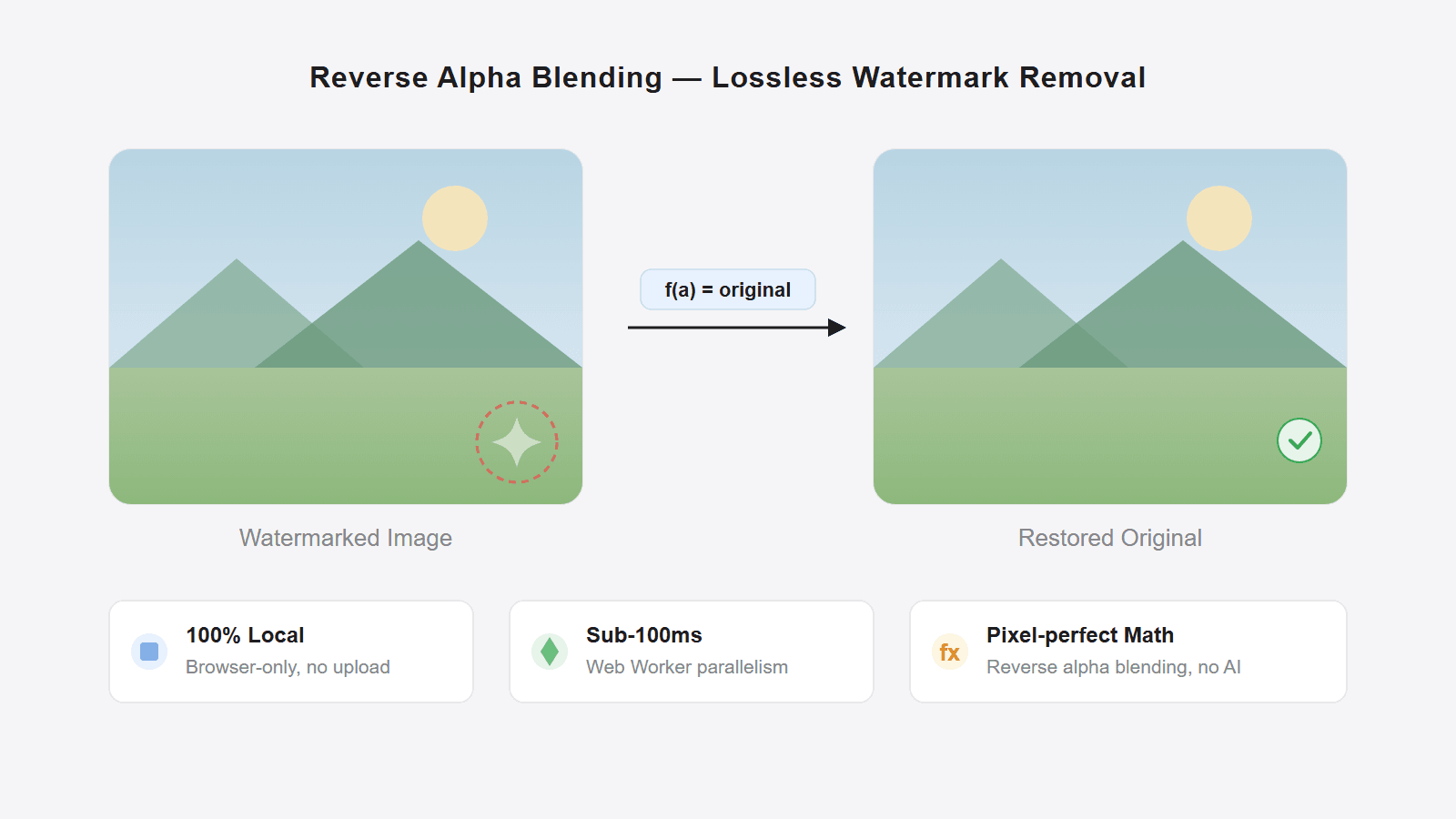
If you are searching for the fastest way to remove a Gemini watermark, the short answer is: use a Gemini-specific workflow on the original exported file, not a generic AI retouch tool first.
Gemini's visible watermark is not random text painted over a corner. It is a fixed overlay in a fixed location. When your input is still close to the original Gemini export, a Gemini-specific workflow usually cleans it faster and with fewer artifacts than a generic inpainting workflow.
For a local browser-only image workflow, use geminiwatermarkremover.io. Pilio's Gemini Watermark Remover now uses a hosted server-side pipeline, which is better for Gemini videos, complex images, and cases that need AI cleanup as a fallback.
This guide is practical only: what to upload, what quality to expect, where results break down, and what to do when the image is no longer in ideal shape. For the technical explanation behind the method, read how Gemini watermarks are added and removed afterwards.
TL;DR: 30-second decision
- You have the original Gemini image export → try geminiwatermarkremover.io for local browser processing
- You have a Gemini video, screenshot, or compressed copy → use Pilio Gemini Watermark Remover for hosted cleanup, but do not expect perfect restoration
- It is not actually a Gemini watermark (logos, text, proof marks) → use Image Watermark Remover instead
- Not sure → read the "How to tell if it is a Gemini watermark" section below first
Quick answer: how to remove Gemini watermark with the least friction
For most users, the fastest workflow is:
- Get the original Gemini-generated PNG, JPG, or WEBP if possible
- Open geminiwatermarkremover.io for local browser processing, or Pilio Gemini Watermark Remover for hosted cleanup
- Drop the image into the page
- Let the selected workflow process it
- Zoom into the bottom-right corner, then download the cleaned image
The local path is best when the watermark is the standard visible Gemini star mark and the file has not been heavily altered. Use Pilio's hosted path when the file is a video, the image is messy, or you want a managed AI fallback.
Best-case input
Original Gemini exports produce the cleanest result. Screenshots, social-media forwards, and recompressed copies are still worth trying, but the result can be less exact.
How to tell if it is a Gemini watermark
Before uploading anything, spend 5 seconds confirming which kind of watermark you are dealing with, so you do not take the wrong path.
Likely a standard Gemini watermark if most of these are true:
- the image came from a Gemini chat, Google AI Studio, or the Gemini App export
- there is a small colored star mark in the bottom-right corner (sometimes next to "Gemini" text)
- the mark is fixed in the corner, not placed randomly or in the center
- multiple images from the same generation share the same watermark size and style
Probably not a Gemini watermark — use a general tool instead if:
- the mark is a stock-photo logo (Shutterstock, Getty, iStock, and so on)
- the mark is text, a domain, or an author signature
- the mark comes from a different generator (Midjourney, DALL·E, etc.)
- the mark is UI chrome or an app badge inside a screenshot
Step 1: use the closest file you have to the original Gemini export
Beyond confirming the watermark type, also check how many times the image itself has been processed.
Best input
- downloaded directly from Gemini
- saved without resizing
- saved without screenshotting
- not passed through WeChat, Telegram, X, or similar platforms first
Usually still workable
- a file saved from chat history
- a lightly recompressed copy
- a file converted between common web formats without heavy quality loss
Higher-risk input
- screenshots
- images compressed by messaging apps
- images edited after generation
- files where the bottom-right corner was cropped, resized, sharpened, or blurred
Why this matters: the Gemini-specific workflow is strongest when the watermark pixels still match the original overlay pattern closely. The more the corner has been altered, the less exact the restoration.
Step 2: use a Gemini-specific remover before a generic watermark eraser
Once you have the best source file available, choose the Gemini-specific path before a generic watermark eraser. For original images, geminiwatermarkremover.io is the local browser path. For videos, compressed images, or complex cases, upload the file to Pilio Gemini Watermark Remover, which runs a hosted cleanup workflow.
- the image definitely came from Gemini
- the visible watermark is still in the normal bottom-right position
- you want a workflow tuned for Gemini outputs
- you want to avoid manually drawing masks first
Generic AI tools solve the problem by reconstructing the hidden area: they guess what the background, texture, and edges should look like. That is broad but slower, and more likely to hallucinate replacement details. A Gemini-specific workflow starts from the known visible watermark pattern, then uses hosted AI cleanup only when the input is no longer ideal.
If you want the full explanation of reverse alpha blending, watermark size detection, and why direct exports matter so much, read how Gemini watermarks work.
Step 3: inspect the corner before batching
After processing, do not blindly download everything. Zoom in on the bottom-right corner first.
Good result
- no visible star outline
- no bright residue
- background gradients look continuous
- edges and textures look natural at normal viewing size
Warning signs
- a faint white haze remains
- colors in the corner shift slightly
- smooth backgrounds show a square or patch
- fine edge detail looks brittle or over-corrected
If the first image looks clean, process the rest of the batch. If not, stop and check whether the source file was already compressed or screenshotted, before blaming the tool.
When it works best
The local browser workflow performs best in a narrow but very common scenario: standard Gemini-generated images with the visible watermark still intact.
Expect the strongest results when:
- the file is an original export
- the watermark area is not sitting on a nearly pure white background
- the image corner has not been resized or recompressed
- the watermark is the usual visible Gemini star overlay
In that case, cleanup is often close to lossless for practical use. For slides, drafts, mockups, and normal web use, the result is usually more than good enough.
When to lower expectations
Some users search for "how to remove Gemini watermark" after the file has already gone through several other steps. That is where expectations need to stay realistic.
Results often degrade when:
- the image was screenshotted instead of downloaded
- the image was sent through a platform that recompresses media
- the image was scaled before removal
- the watermark sits on a bright near-white area
- the corner already contains edits, annotations, or extra overlays
In those cases, the tool can still improve the image noticeably, but perfect restoration is no longer guaranteed — the underlying pixels have already changed.
What to do if it is not actually a Gemini watermark
A lot of users say "Gemini watermark" when they really mean one of these:
- a stock photo logo
- a text overlay from another generator
- a social-media badge
- a screenshot with UI chrome
- a watermark burned into a non-Gemini image
If that is your case, skip the Gemini-specific tool and use Image Watermark Remover instead. That workflow is broader and better suited to generic image watermark cleanup.
If you are not sure which class of tool you need, read our full image watermark removal guide. It compares the main technical paths and helps you decide between Gemini-specific cleanup, AI inpainting, and other options.
Frequently asked questions
Is there a free way to remove Gemini watermark?
Yes. geminiwatermarkremover.io is the fastest local path for the standard visible Gemini image watermark. Pilio's Gemini Watermark Remover is the hosted path for videos, complex images, and fallback cleanup.
Does the image stay on my device?
For geminiwatermarkremover.io, yes: processing happens locally in the browser. Pilio's Gemini remover is a hosted workflow, so upload only files you are comfortable processing through the service.
Can it remove Gemini watermark from screenshots?
Sometimes, but screenshots are a weaker input than direct exports. You may still get a visibly improved result, but the cleanup is less exact because scaling and color changes have already altered the corner pixels.
Can I batch-process multiple images?
Try a single image first to confirm the result, then batch. Batch processing itself is not complex, but if the source files have mixed origins or processing histories, results will vary — inspecting each corner remains necessary.
Does it work on mobile browsers?
Yes. Any browser that supports file upload (iOS Safari, Android Chrome) works. The main difference is that inspecting fine detail is harder on a small screen, so double-check the output on a larger display when possible.
Can it remove other watermarks too?
Not reliably. This tool is best for the visible Gemini watermark. For general logo, text, and proof-mark removal, use Image Watermark Remover.
Recommended next step
If your file is a direct Gemini image export and privacy is the priority, start with geminiwatermarkremover.io.
If the image has already been edited, compressed, came from a different source, or is a video, try Pilio Gemini Watermark Remover. For non-Gemini marks, compare it with Image Watermark Remover, or read the broader image watermark guide first.